
QuickQ
Stay online wherever your network takes you
Travel, study abroad, play on overseas servers or run an online store. One account moves between your laptop and phone without reconfiguring anything.
Download FreeYour first connection in about three minutes
No server addresses to type. Install, sign in and tap a route.
- 1
Install the app
Use the download button for your system and follow the installer.
- 2
Sign in by email
Enter your email, paste the code, then choose a billing period in the app.
- 3
Tap a route
Routes are grouped for gaming, video and work, each showing live latency.
Exit points in the major internet hubs
Tokyo, Singapore, Los Angeles, Frankfurt and more. The app sorts suggestions by where you are right now.

Fewer spinning wheels during shows and live streams
The video group reserves bandwidth for high-bitrate playback, even at peak hours. Switching nodes does not force your player to restart.
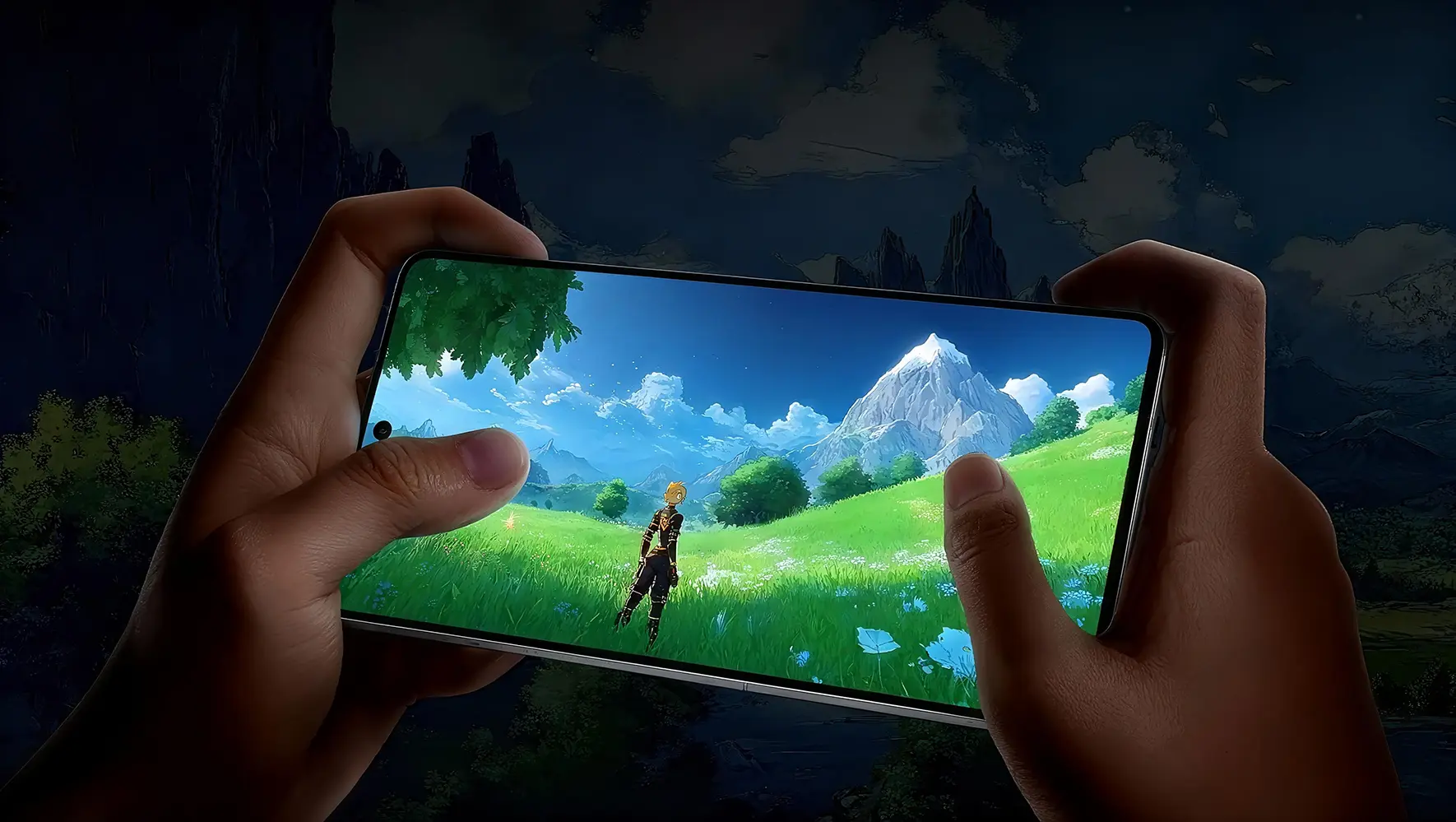
Video use case →Game acceleration that touches only game traffic
Split routing sends game packets over a dedicated path while other apps keep using your local line.


Cross-border sellers need a consistent store region
Choose an exit that matches your marketplace and keep each store on the same route to avoid unusual-login checks.
Which route group fits which task
A quick reference for first-time users.
| Task | Suggested group | What to look at |
|---|---|---|
| Online games | Gaming | Latency; choose a city near the game server |
| Video and live streams | Video | Load; prefer quiet nodes at peak time |
| Remote work | General | A fixed exit so calls are not interrupted |
| Online stores | Dedicated exit | One region per store, changed rarely |
Five reasons people pick QuickQ

Route suggestions
Ranked by ping and load

Human support
Tickets answered by staff

No activity logs
Browsing is not stored

Encrypted tunnel
Safer on public Wi-Fi

Dedicated exits
Less shared-IP noise
Tips before you connect
Close other proxy tools
Running several network tools at once often causes conflicts.
Let the phone app run in background
Turn off battery restrictions so the system does not drop the tunnel when locked.
Save your favorite routes
Star stable nodes so they are one tap away next time.
Payment options
The official checkout lists these methods; availability is shown at payment time.


Questions new users ask
What do I need before the first connection?
An internet-connected computer or phone and an email inbox for the sign-in code. Install the app, sign in, pick a plan and choose a route.
How many devices can share one account?
The number of devices online at the same time depends on the billing period; longer periods usually allow more. The checkout page shows the exact limit.
Why should I only use the buttons on this site?
Every download button points to one entry point, so you avoid modified installers shared on forums or file lockers.
How is Game Mode different from normal mode?
Game Mode routes only game client traffic. Browsers, chat apps and everything else stay on your local connection, which keeps ping steadier.
My speed dropped suddenly. What should I try first?
Sort the route list by latency and switch nodes, then restart your router. If it persists, open a support ticket.
Can I change my billing period later?
You can upgrade to a longer period at any time and pay the difference. Downgrades normally apply when the current period ends.